
If the TOPPING Pro Control Center or the firmware is not the latest version, update them first. Alternatively, uninstall the TOPPING Pro Control Center completely (ensure full removal), disable antivirus software, and reinstall it.
Check "Safe Mode" in the System Settings of the TOPPING Pro Control Center.
Try setting the sample rate to 44.1kHz or 48kHz. Higher sample rates increase system load; insufficient computing power may cause audio stuttering or crackling.
Increase the buffer size in the TOPPING Pro Control Center. Smaller buffers reduce latency but require higher computer performance. If the system cannot keep up, stuttering/crackling may occur. Set the buffer to maximum first. If resolved, gradually reduce it to balance latency and performance.
When using a DAW (Digital Audio Workstation), adjust the buffer size within the DAW and check for effects chains on tracks to avoid CPU overload.
Close unnecessary software to reduce system load. Disconnect unused devices. If using multiple audio interfaces, try connecting only one.
Try powering the audio interface externally via the DC5V POWER port (except for E8x8pre).
Avoid USB hubs. Connect the audio interface directly to a USB port on the back of the computer. Test different USB ports if possible.
Try alternative USB cables (≤1.5m). Use straight cables and avoid adapters.
Test the setup on a different computer if possible.
Overload distortion may occur due to high volume. Check volume settings in:
○ TOPPING Pro Control Center
○ Media players
○ DAW
○ System audio
(If distortion occurs only in the DAW, verify its volume/ plugin settings.)
For Line Out users:
○ Ensure the audio interface's output level does not exceed downstream device limits.
○ Never insert TS plugs (unbalanced) into Line Out ports (TRS balanced output), as this shorts the cold signal to ground.
Recommended Computer Settings
Select the High Performance power plan if it's available in your system's power options.
|
|
|
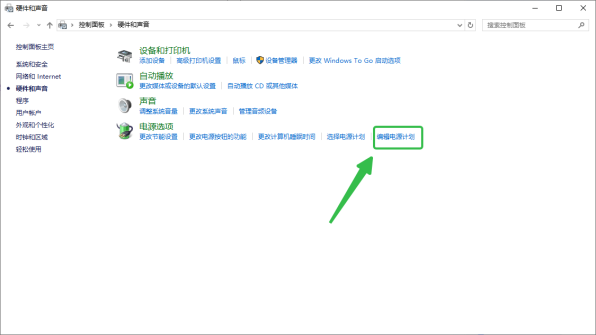
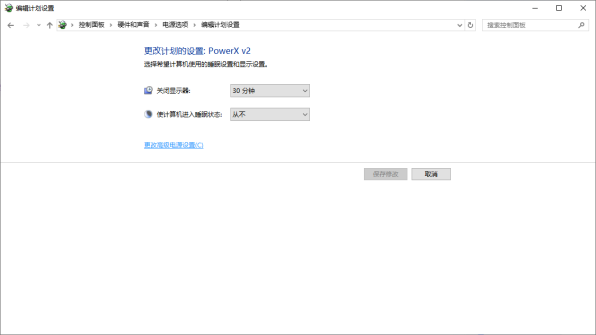
If your system has a USB selective suspend setting, disable it. Also, set the minimum processor state to 100%.
In your Windows sound settings, disable any audio channels you don't need and make sure to disable exclusive mode for your audio interface's channels.
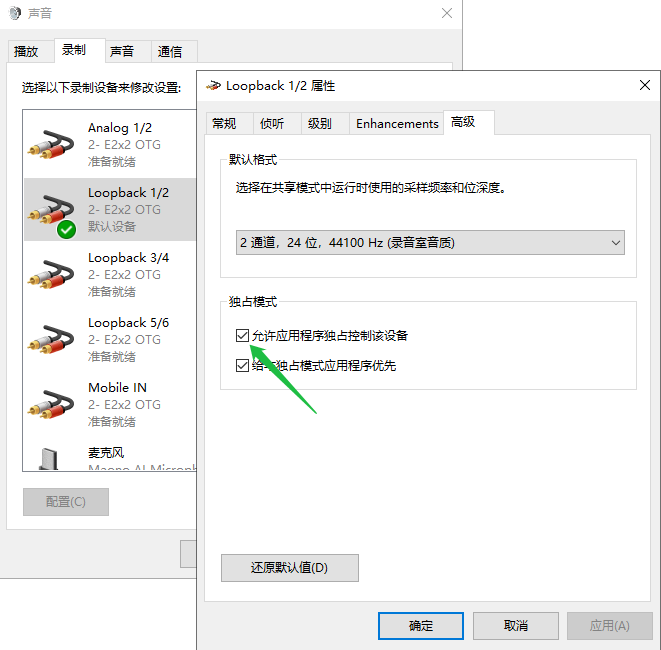
If you have any power-saving options enabled, uncheck settings like "Allow the computer to turn off this device to save power."
Ensure you have sufficient free space on your hard drive.
Consider updating or reinstalling your computer's operating system. A Pro version of Windows is often recommended over the Home edition for professional audio use.
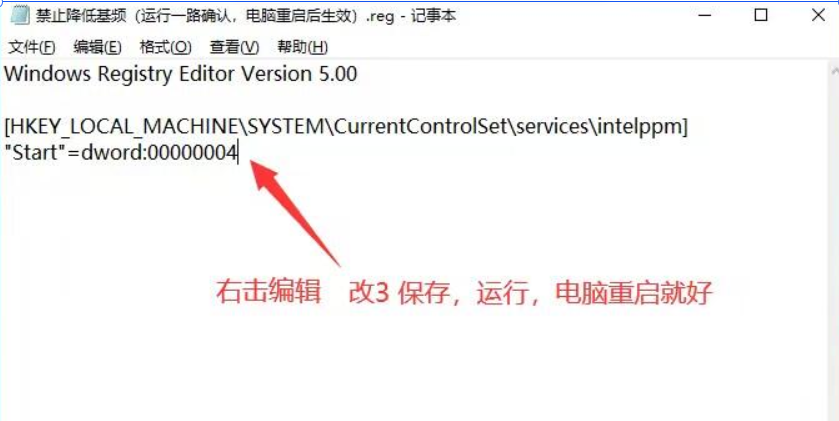
You may want to disable your CPU's automatic clock-speed throttling. To do this, download and run this file: https://dl.topping.audio/others/a0001.7z After running it and confirming all prompts, restart your computer. To revert this setting, run the same file again.
Testing Your PC's DPC Latency
DPC (Deferred Procedure Call) is a Windows mechanism that coordinates high-priority and low-priority tasks. When a driver takes too long to handle a high-priority task, it can block other tasks from executing in a timely manner, resulting in high latency.
We recommend using Latencymon to check if your computer has high DPC latency, which would make it unsuitable for real-time audio processing.
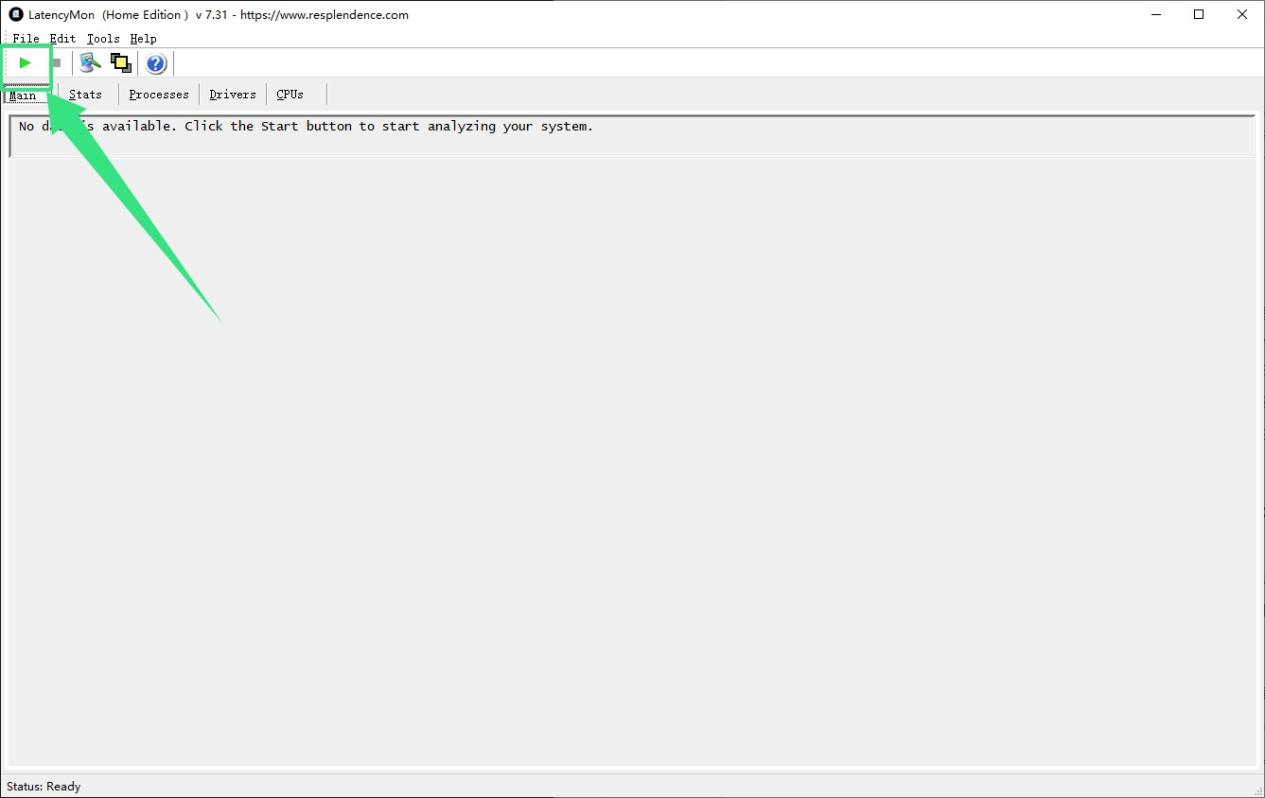
To test, close all unnecessary programs, launch Latencymon, and click the "Start" button in the top-left corner. Run the test while you are performing your normal audio tasks.
Interpreting Your LatencyMon Results
If the test results show red and the conclusion states that your system is not suitable for real-time audio processing, you need to perform additional DPC latency optimization.
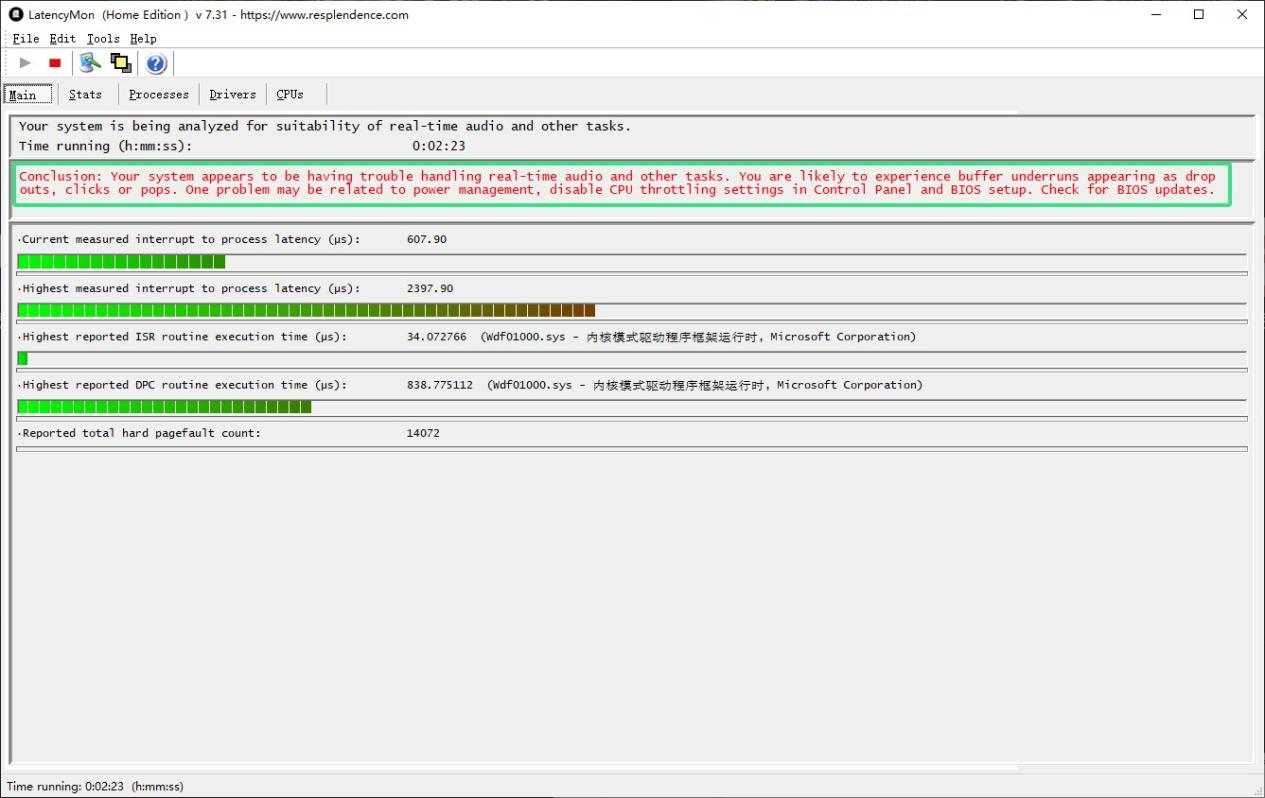
If the results stay green and the conclusion says your system is ready for real-time audio, then your computer's DPC latency is not the issue.
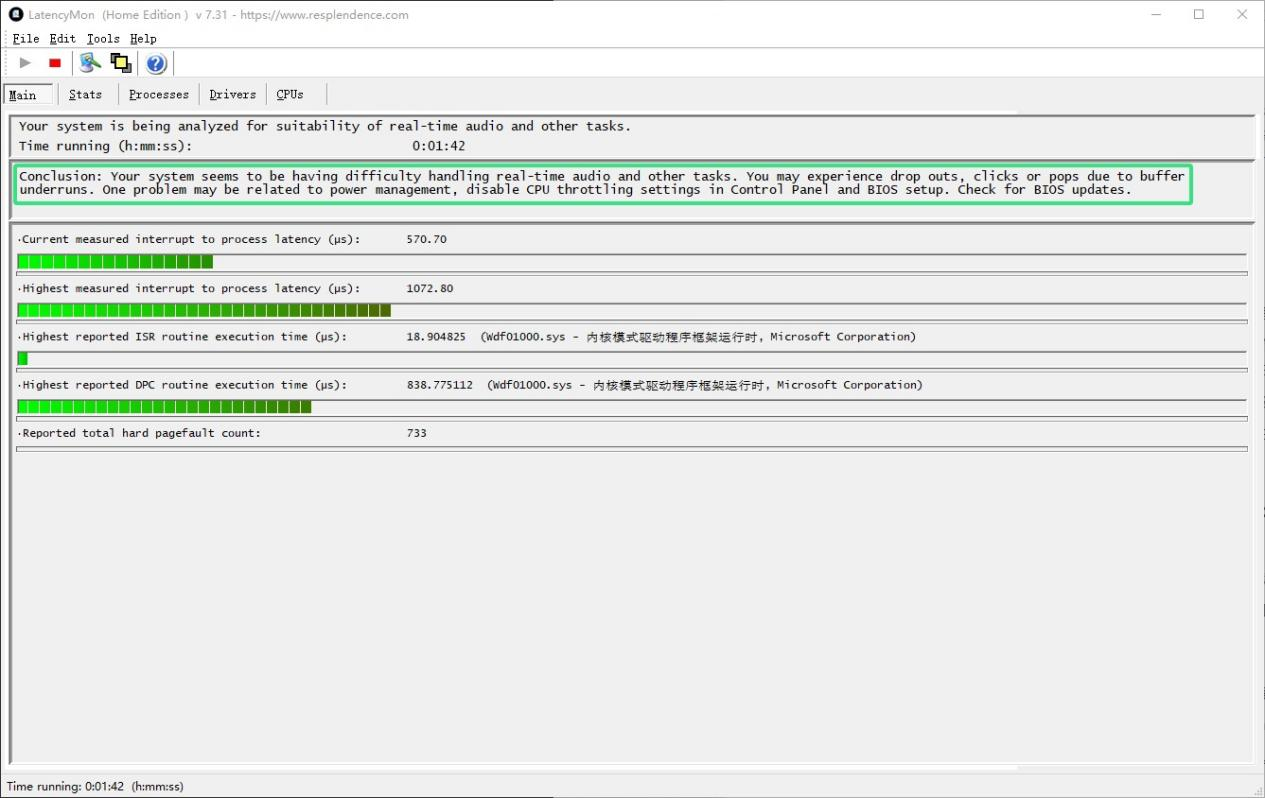
If the test concludes your computer is not suitable for real-time audio, you can try the following:
Use a tool like BoosterX to optimize your DPC latency.
Install or update the latest drivers and BIOS for your motherboard, CPU, GPU, and other components. You'll need to find the manufacturer and model of your computer or its components to download the correct files from their website or through their applications.
Update or reinstall your computer's operating system. We recommend using a Pro version of Windows over a Home version for professional audio work.
If the problem persists, please contact your computer or motherboard manufacturer or a PC technician for further assistance.