Try pressing the power switch on the rear panel of the unit to turn it off, then restart it. This should allow it to operate normally.
If the issue persists, check that the USB cable is fully inserted and connected to the USB-C port on the device, not the POWER port.
Try connecting an additional DC 5V power supply to the POWER port.
Check for damage to the USB cable and try using a different cable no longer than 2 meters.
Try a different USB port on your computer, preferably one on the back of the desktop tower.
If possible, test the audio interface with a different computer or mobile device to rule out a computer-specific issue.
Try performing a factory reset. If the issue still isn't resolved, please contact our technical support team for further assistance.

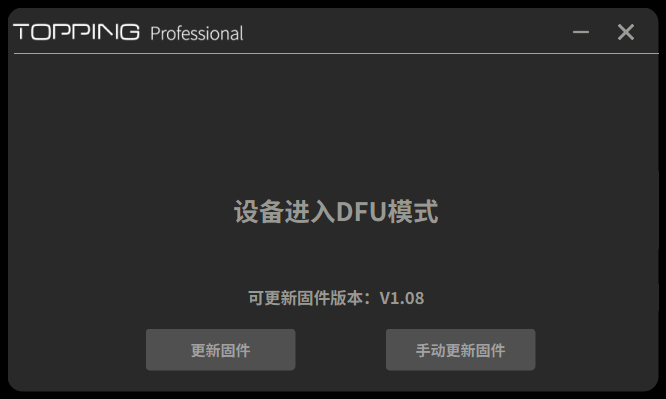
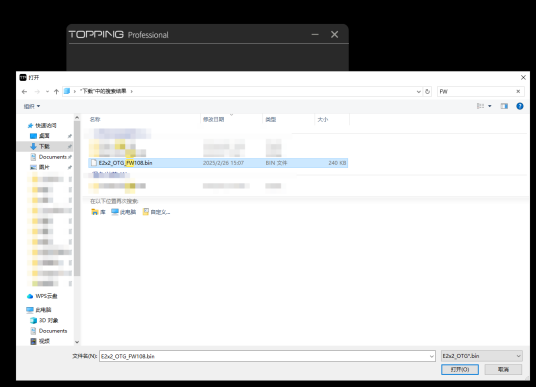
To manually enter DFU (Device Firmware Update) mode and reflash your firmware, follow these steps: While the unit is powered off, press and hold the GAIN button. While still holding the button, turn on the power switch. Connect the audio interface to your computer using the USB-C port. Launch the TOPPING Pro Control Center software. The device should now be in DFU mode. From here, you can either update the firmware online or manually flash a previously downloaded firmware file.
|
|
|